


Live streamFaith & traditions
Mandir Se Live Darshan
Take viewers on a temple visit. Share the atmosphere and traditions from areas where filming is permitted.


80%you keep

Sell tickets to your stream.
Offer your undivided time.
Teach or advise a small group.
Your first booking express
 01
01Apna creator page aur offer likho.
 02
02Ticket ya session price choose karo.
 03
03Link apni community ko bhejo.
 04
04Start your show on your app.
A few ideas to get your first listing started.
Take viewers on a temple visit. Share the atmosphere and traditions from areas where filming is permitted.

Share mountain stops and road-trip stories. Use a mounted camera for ride footage and chat with viewers while parked.

Offer adults a friendly, nonjudgmental listening session: companionship, not therapy or emergency support.

Run small-group conversations, role-play and speaking games so everyone gets a turn.

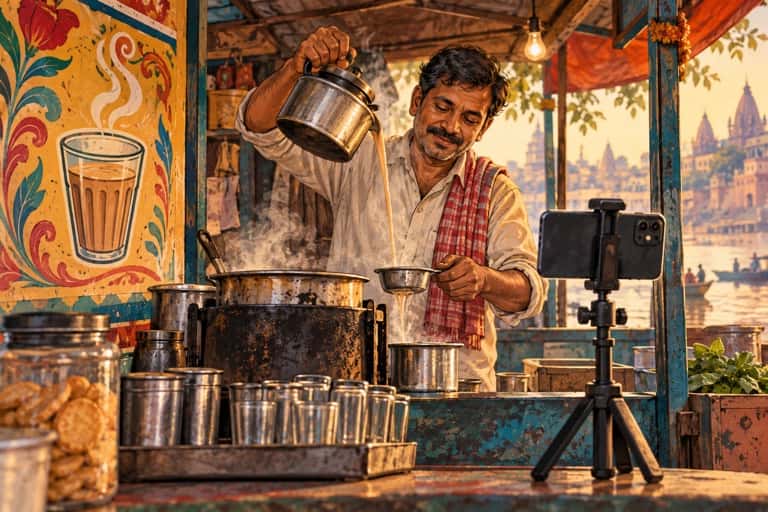
Let viewers drop into your morning chai, household chores and village routine.

Prepare a regional meal from your kitchen, sharing family tips and answering cooking questions.
Listening sessions: adults 18+ · Companionship, not therapy or emergency support.
CONTENT SE OFFER TAK

Choreography, feedback, practice room.
Recipe live, regional thali, kitchen hacks.

Revision sprint, language practice, exam pep talk.

Look breakdowns, draping, thrift finds.
THE MATH, CLEARLY
Inputs badlo aur dekho ticketed events ya 1:1 bookings se kitna gross ban sakta hai.
Illustrative gross before platform fees, taxes, refunds and other costs. Not a promise of earnings.
Planning example in INR; actual listing pricing and checkout quotes follow the current pricing guide. Pricing guide

